UPDF
UPDF
 UPDF for Windows
 UPDF for Mac
 UPDF for iPhone/iPad
 UPDF for Android
 UPDF AI Online
 UPDF Sign
 Edit PDF
 Annotate PDF
 Create PDF
 PDF Form
 Edit links
 Convert PDF
 OCR
OCR PDF to Word
 PDF to Image
 PDF to Excel
 Organize PDF
 Merge PDF
 Split PDF
 Crop PDF
 Rotate PDF
 Protect PDF
 Sign PDF
 Redact PDF
 Sanitize PDF
 Remove Security
 Read PDF
 UPDF Cloud
 Compress PDF
 Print PDF
 Batch Process
 About UPDF AI
 UPDF AI Solutions
 AI User Guide
 FAQ about UPDF AI
 Summarize PDF
 Translate PDF
 Chat with PDF
 Chat with AI
 Chat with image
 PDF to Mind Map
 Explain PDF
 Scholar Research
 Paper Search
 AI Proofreader
 AI Writer
 AI Homework Helper
 AI Quiz Generator
 AI Math Solver
 PDF to Word
 PDF to Excel
 PDF to PowerPoint
 Enterprise Solution
 Enterprise Sign
 Enterprise AI
 Enterprise Plan
 Enterprise User Guide
 Enterprise Webinar
 Banking
 Healthcare
 Insurance
 Legal
Legal Manufacturing
 Government
 Education Solution
 Customer Stories
 User Guide
 UPDF Tricks
 FAQs
FAQs UPDF Reviews
 Download Center
 Blog
Blog Newsroom
 Tech Spec
 Updates
 UPDF vs. Adobe Acrobat
 UPDF vs. Foxit
 UPDF vs. PDF Expert

Before You Read
Windows • macOS • iOS • Android 100% secure
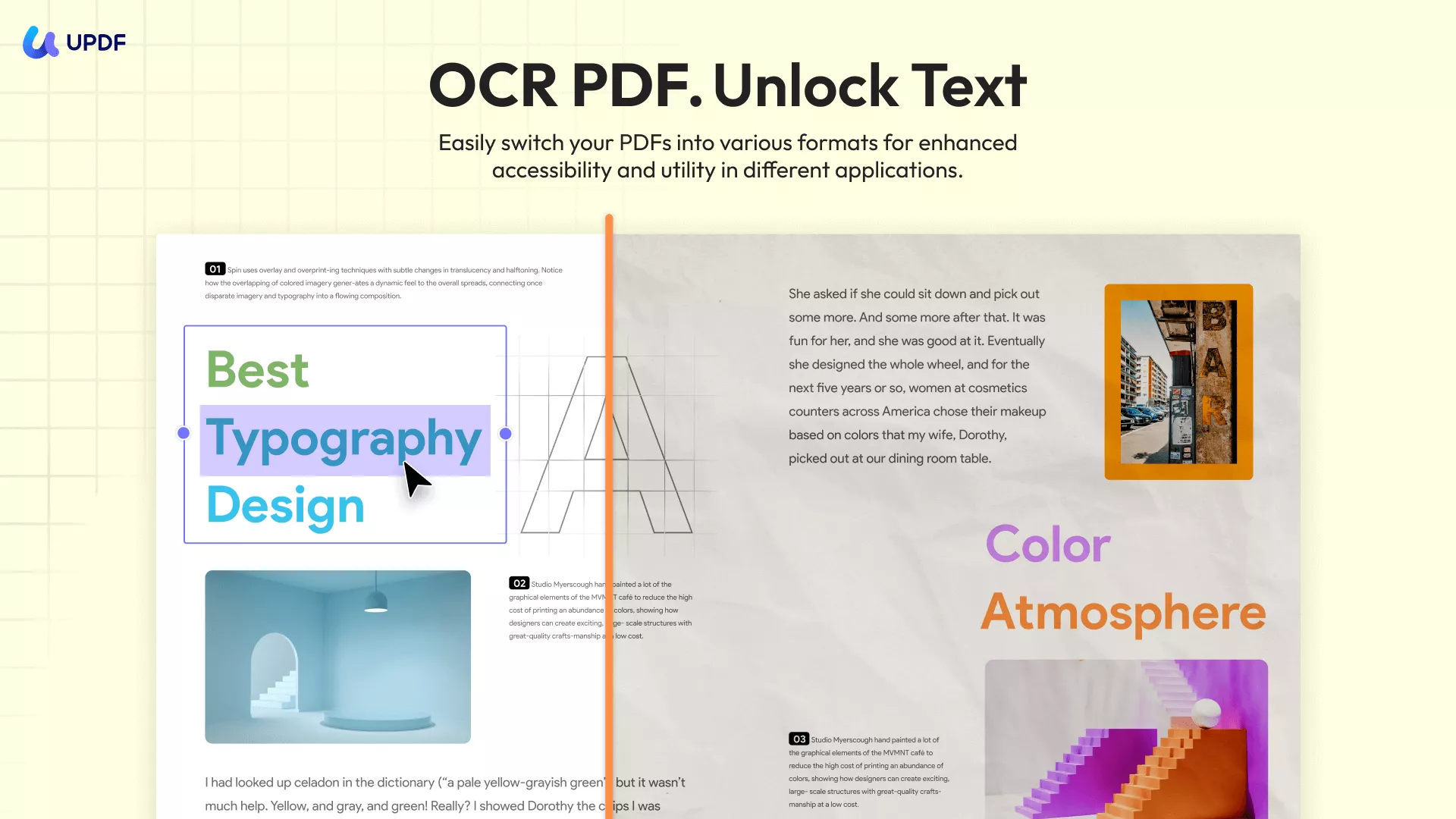
Besides that, we also introduced another powerful OCR tool, which is also a professional PDF editor — UPDF. You might consider it as an alternative to OneNote. If you’re interested, please click the button below to download it, and I’ll explain in detail below why it’s worth trying.
Windows • macOS • iOS • Android 100% secure
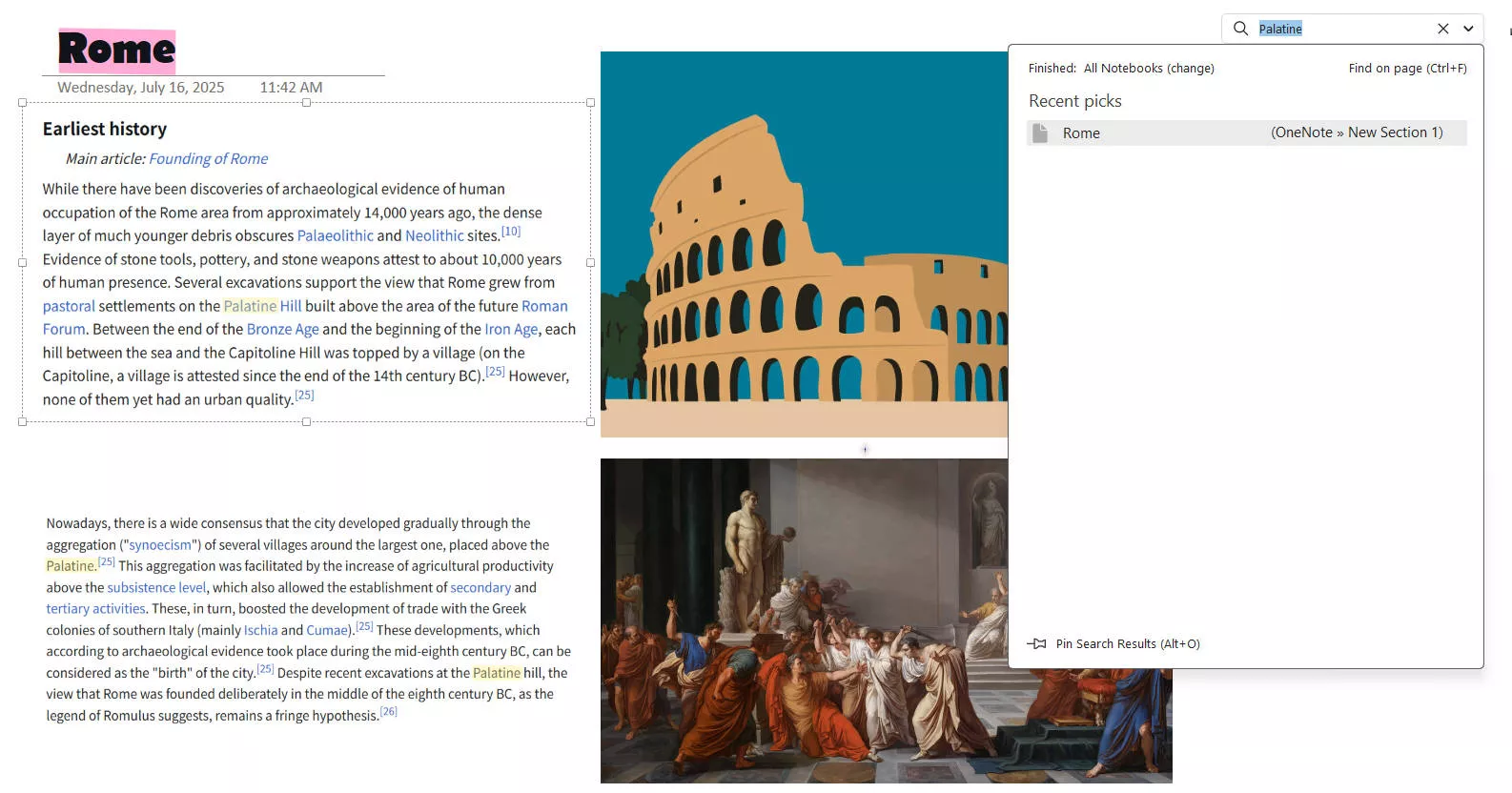
Part 1. Does OneNote Have OCR?
Windows • macOS • iOS • Android 100% secure
Part 2. How to Use OneNote to OCR PDF? (Scanned Documents)
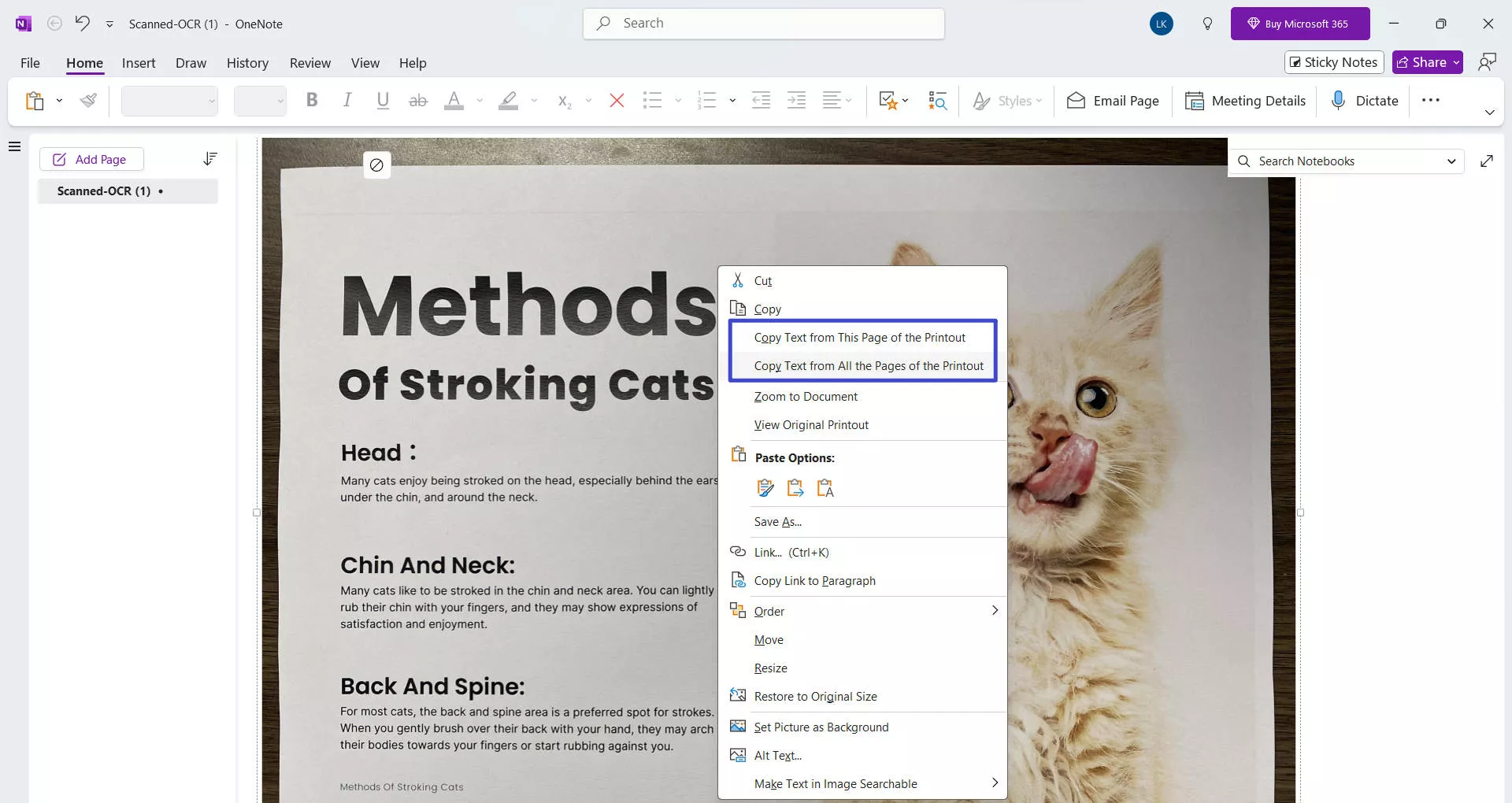
1. Open the PDF as a printout in OneNote.

2. Right-click on the image and select the copy text option.
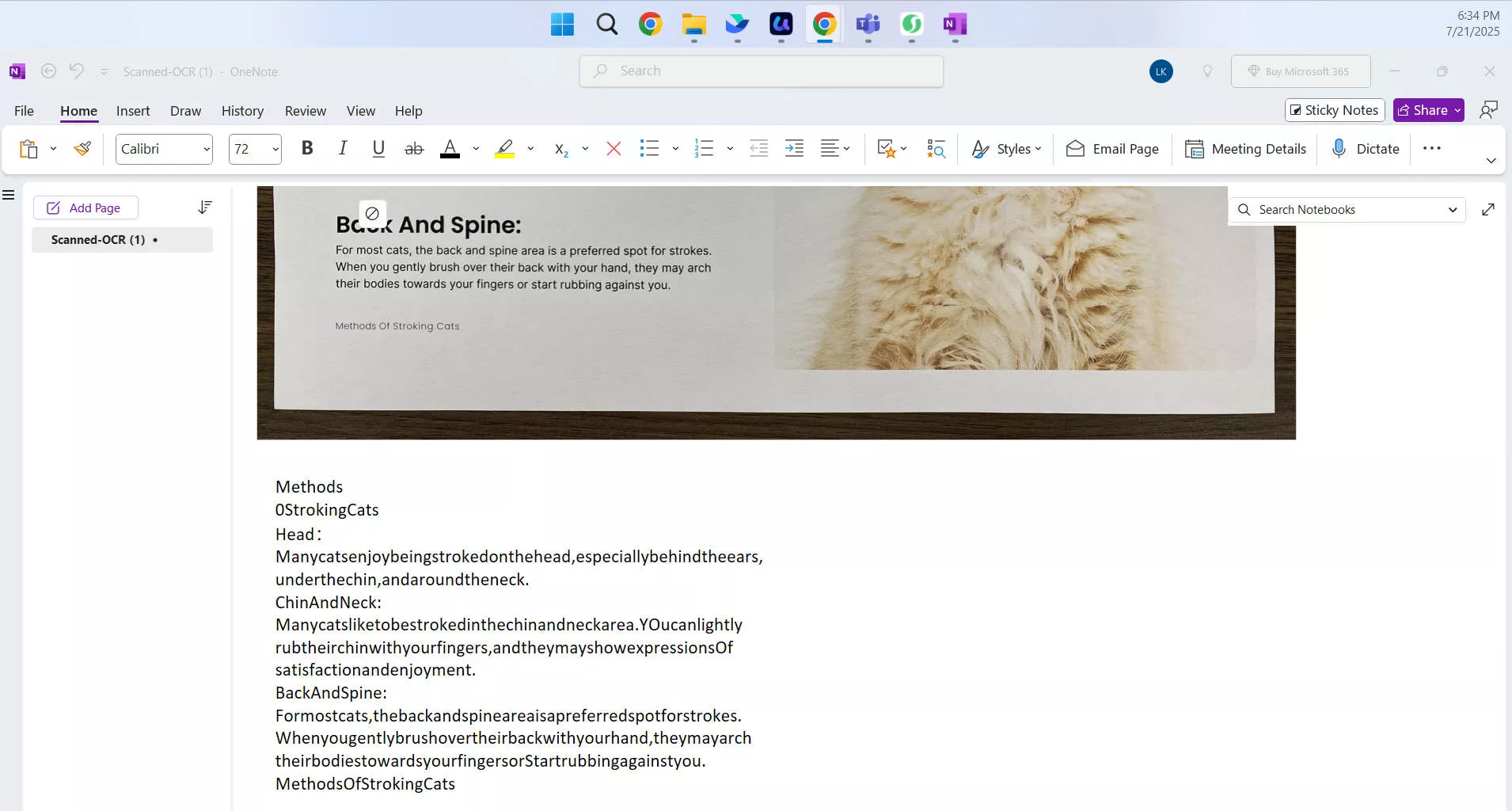
3. Paste text from the PDF.
Part 3. How to Use OneNote to OCR Image?
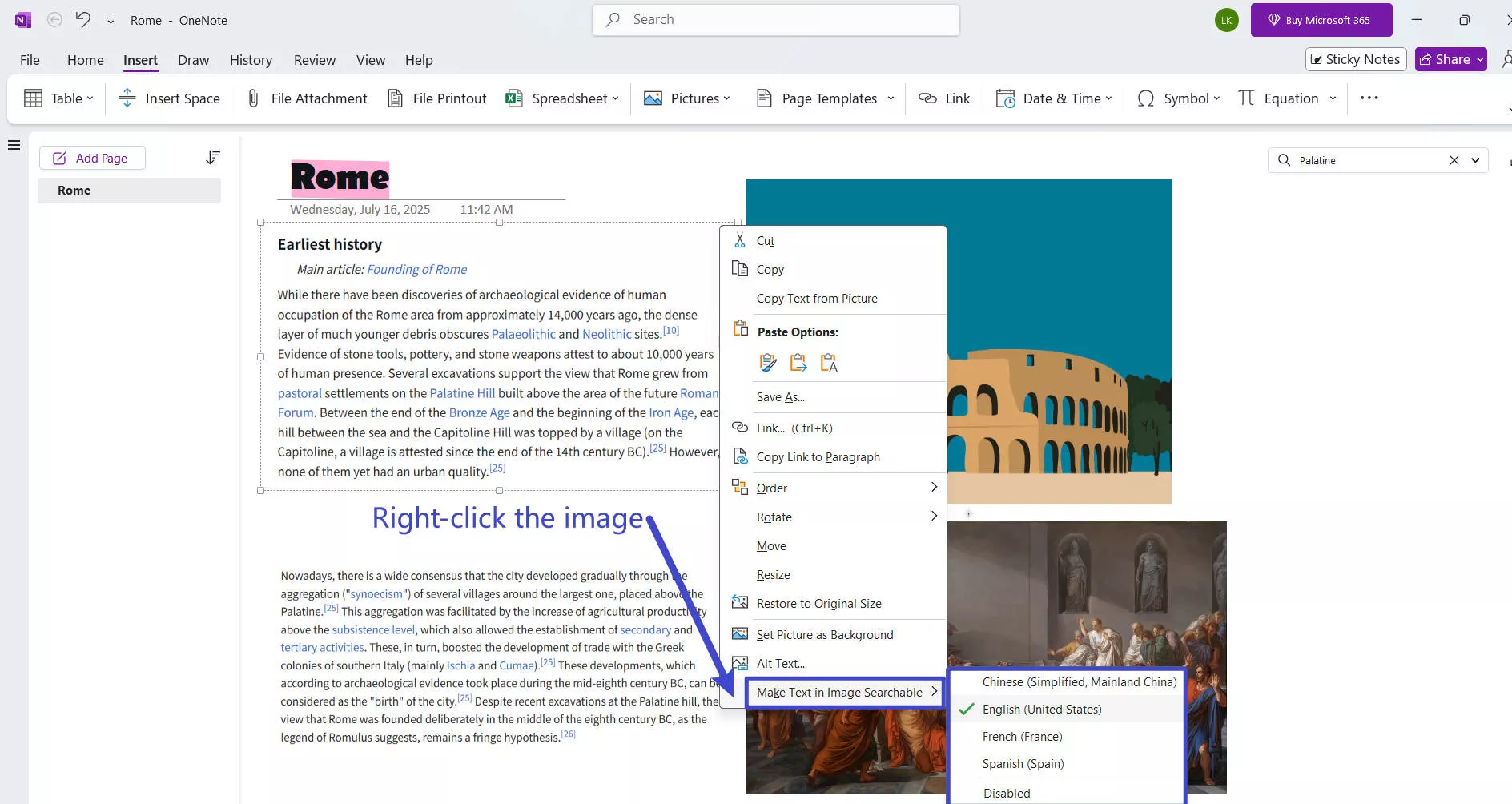
1. Open the image in OneNote.

2. Right-click on the image and select the copy text option.
3. Paste text from the image.
Part 4. How to OCR PDF with OneNote Alternative – UPDF
Windows • macOS • iOS • Android 100% secure
Perform OCR on Desktop
Step 1: First, you will need to download the UPDF software. To do this, click the "Free Download" button.
Windows • macOS • iOS • Android 100% secure
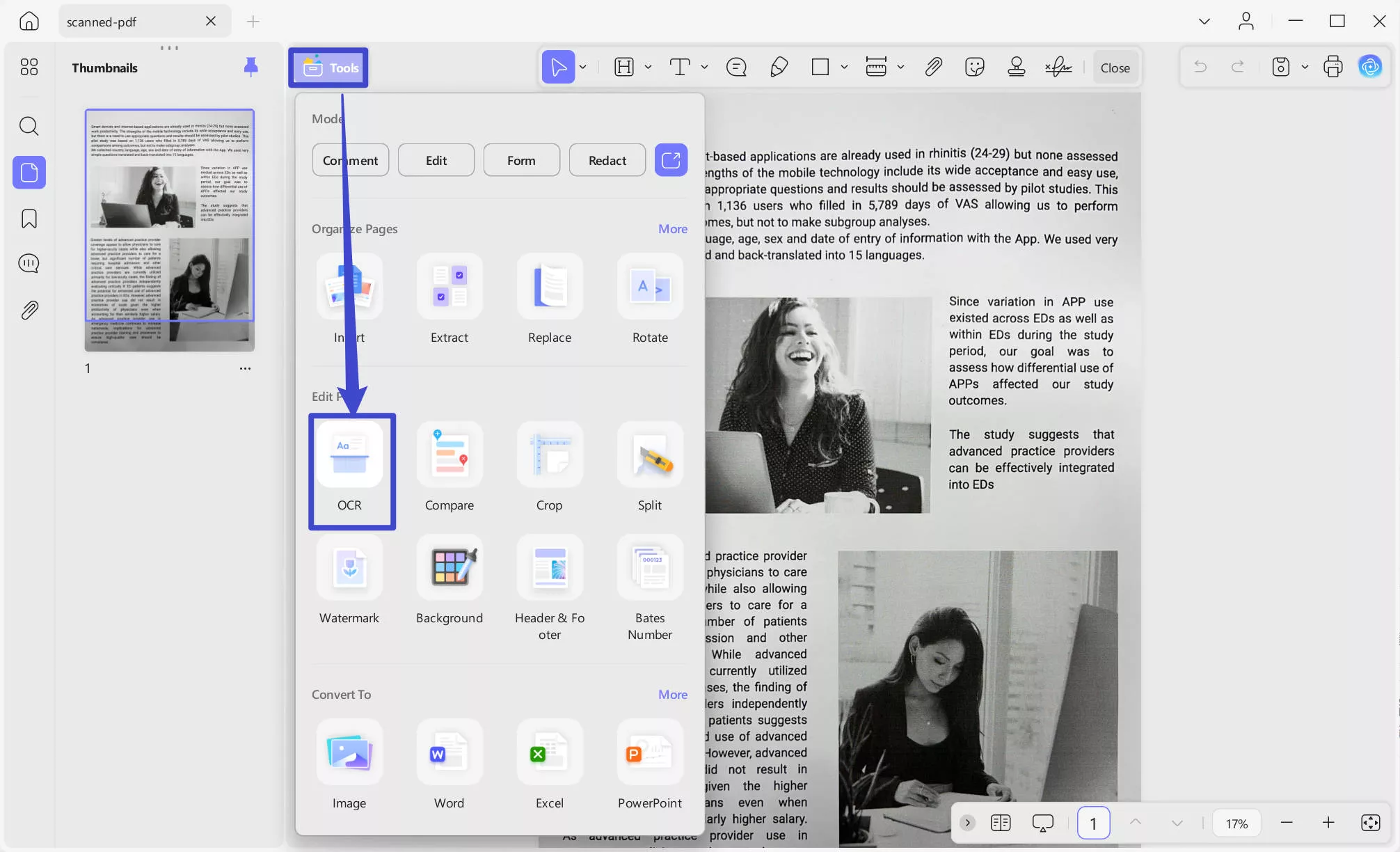
Step 2: Once installed, navigate to the Tools option at the top left side of your screen. Now, from the Tools menu, choose the OCR option to start the process. If you are the first time to use UPDF OCR, it will pop up a window to install the OCR.
Step 3: UPDF OCR provide you with 3 different options of Document Type, which include Editable PDF, Text and Picture Only, and Searchable PDF Only.
- Editable PDF: This mode preserves the background images and illustrations from the original document and places the
recognized text on top. As a result, the file size is usually larger than those created with the "Text and Pictures Only" mode. Visually, the output may look slightly different from the original. - Text and pictures only: This mode saves the recognized text and images, resulting in a smaller PDF file. However, the
appearance may differ slightly from the original document. - Searchable PDF Only: In this mode, the page image is preserved, and the recognized text is added in an invisible layer
beneath it. This keeps the document visually almost identical to the original.
Choose your desired mode based on your need. To achieve more accurate OCR results, you need to correctly select the language you want to recognize, such as English. If your document contains multiple languages, you need to select those languages in the language options as well.
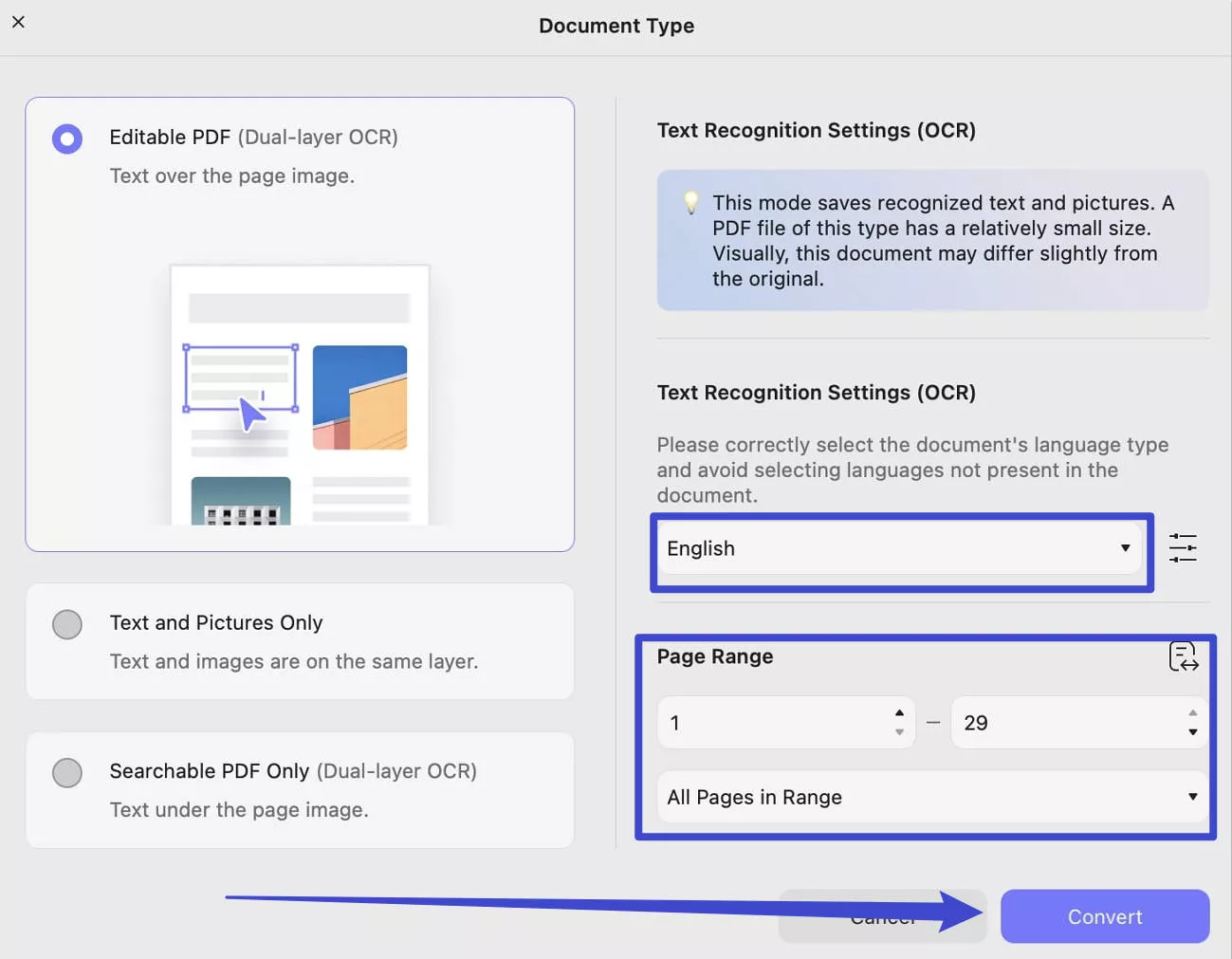
When you finished setting, you can click on the Convert button to convert your scanned PDF into editable now.
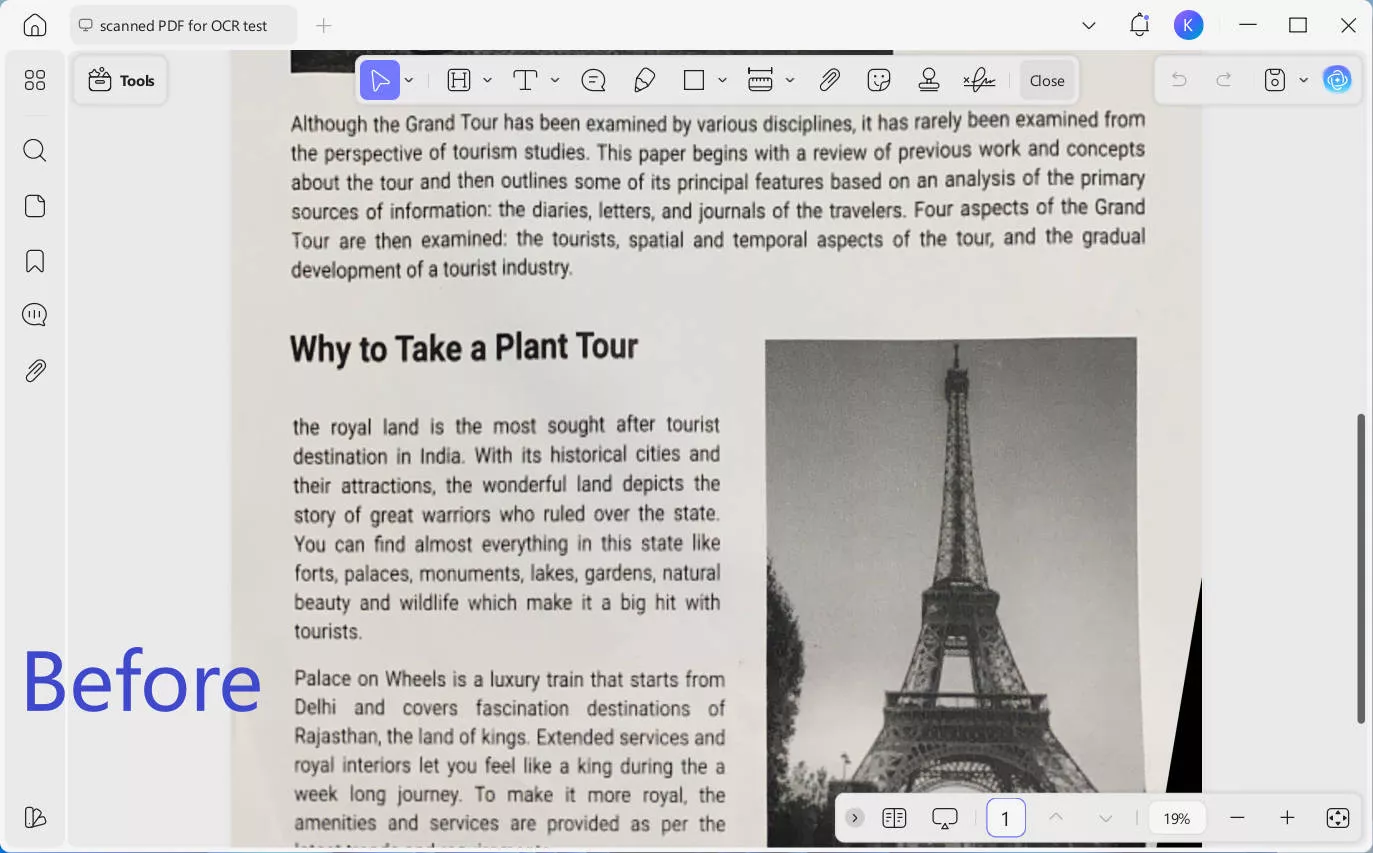
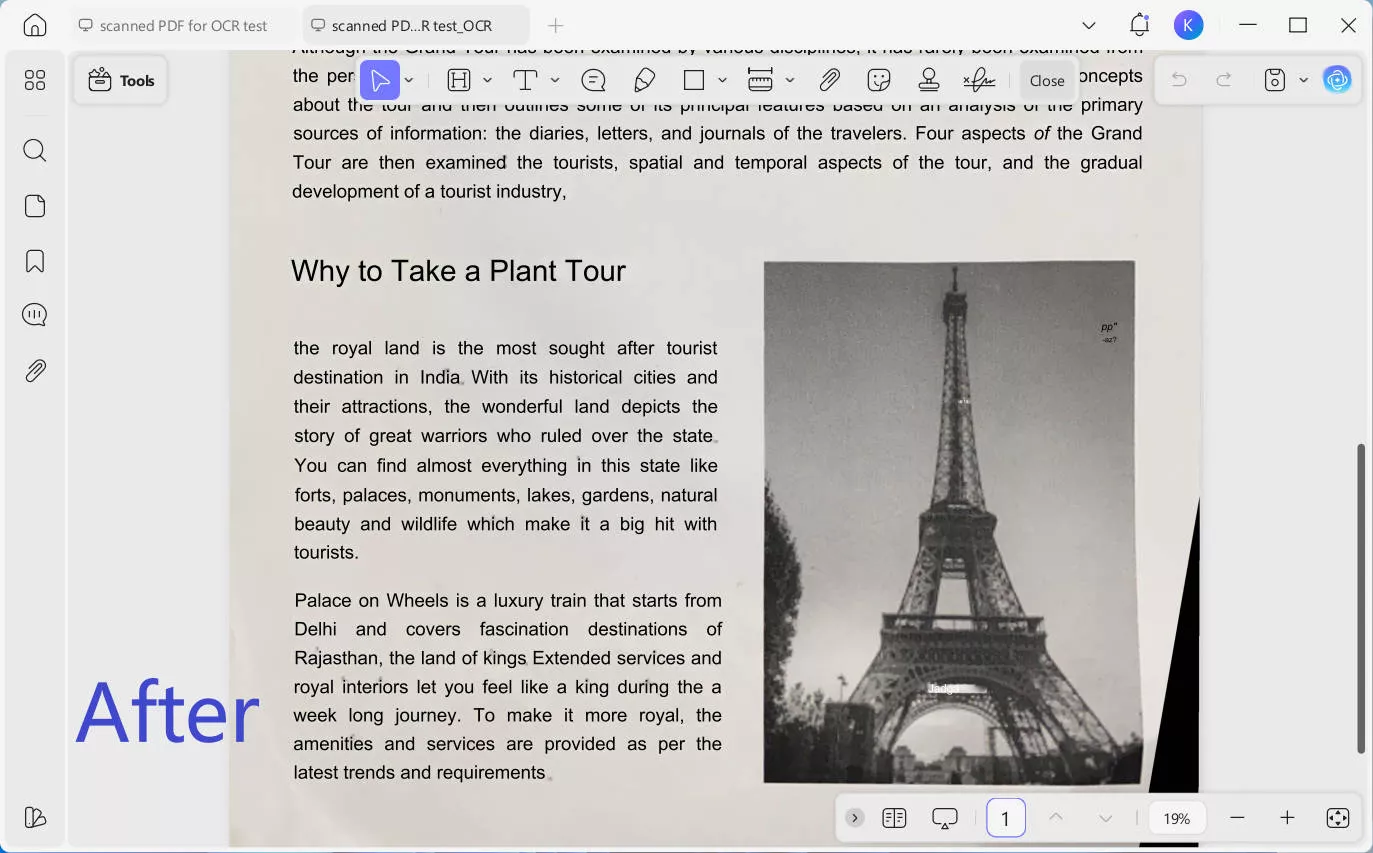
OCR feature of UPDF also allows you to make PDF clearer effectively. Get UPDF now and start OCR your PDF by following the above steps.
Windows • macOS • iOS • Android 100% secure
Perform Batch OCR on Desktop
There’s also Batch OCR tool in UPDF, you can transform multiple scanned PDFs into searchable or editable documents to get the work done more quickly.
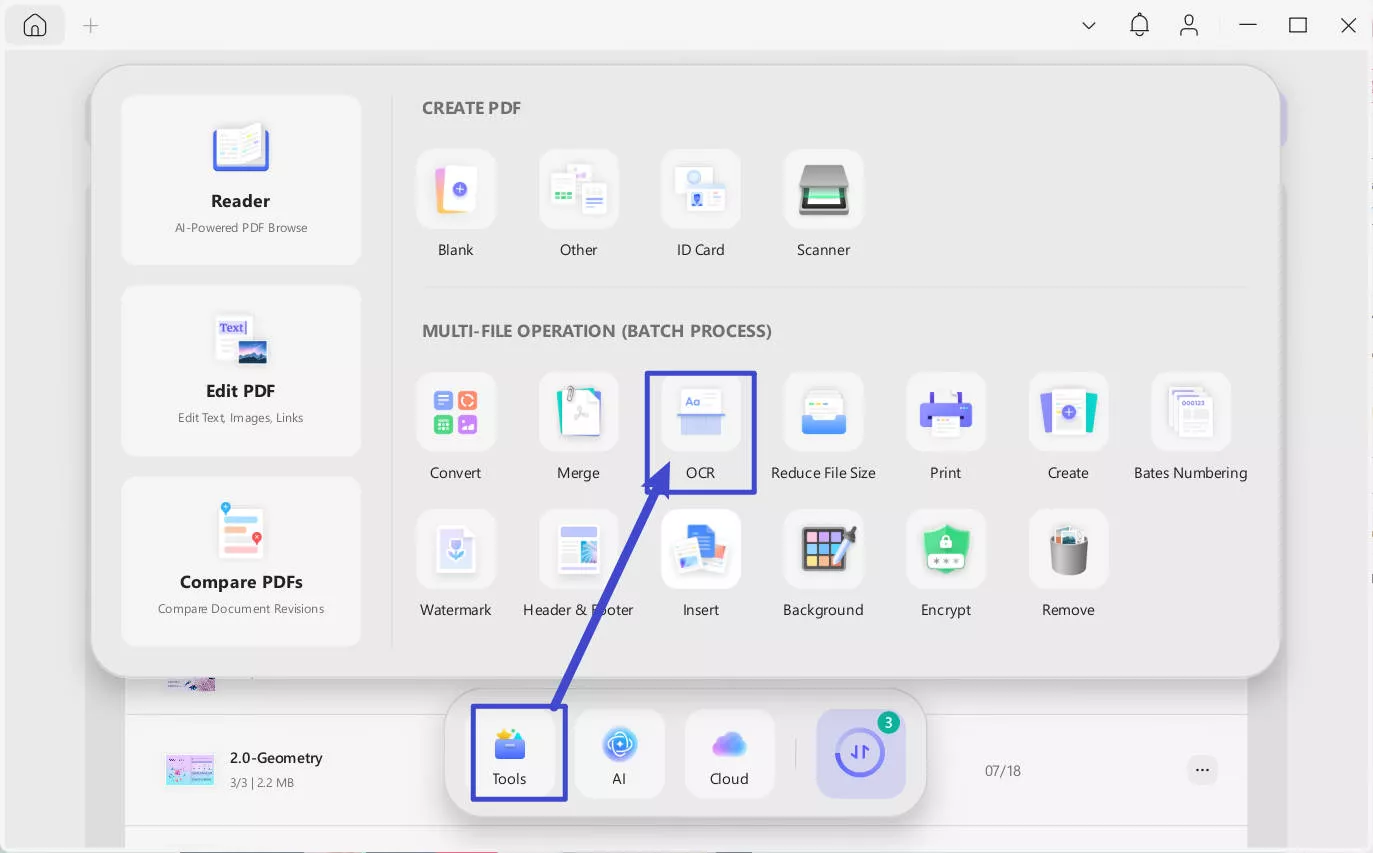
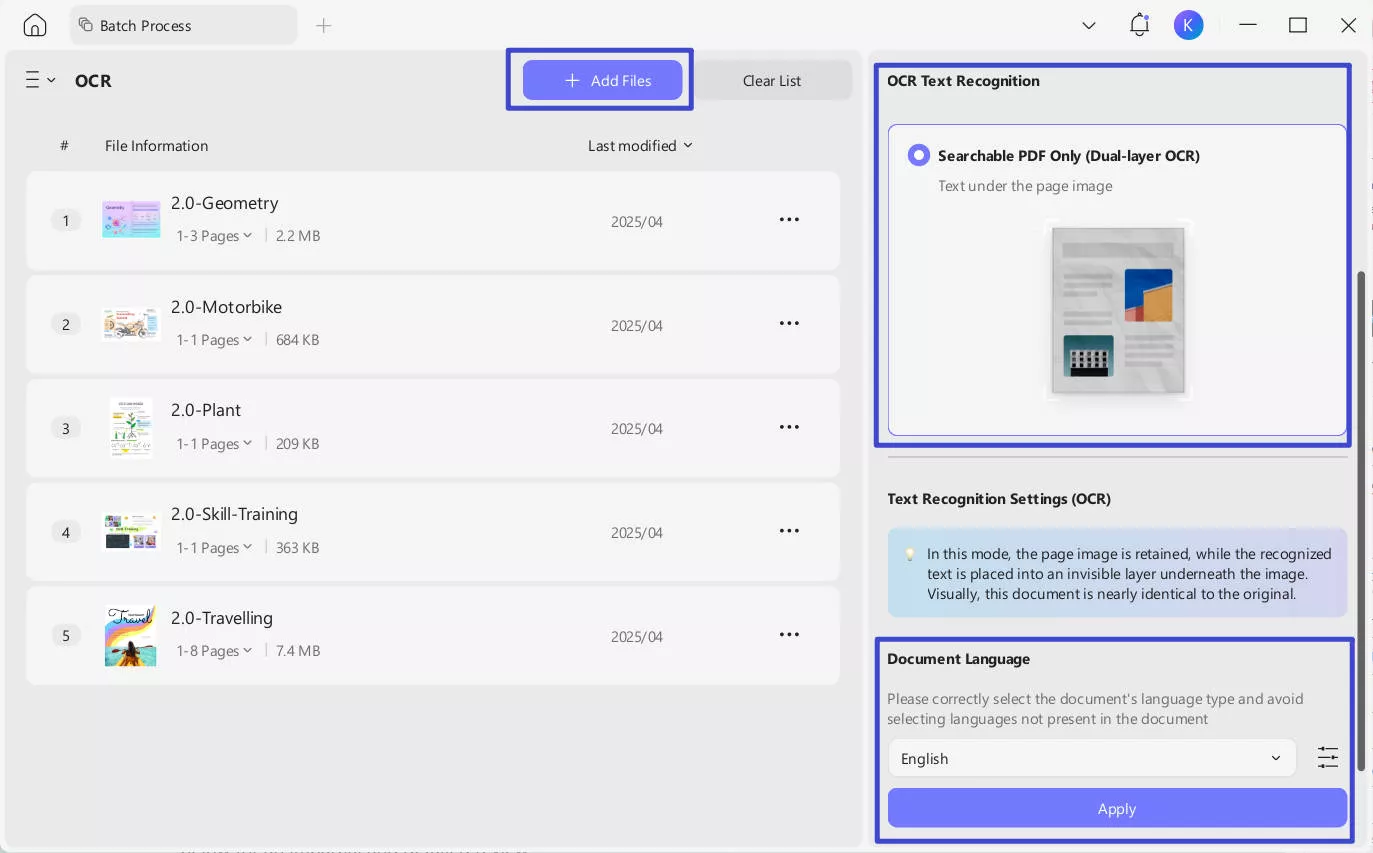
Simply go to "Tools" in UPDF interface and choose "OCR", add all the files you want to convert to searchable PDF formats, choose the right document language and click "Apply".
Perform OCR on Mobile
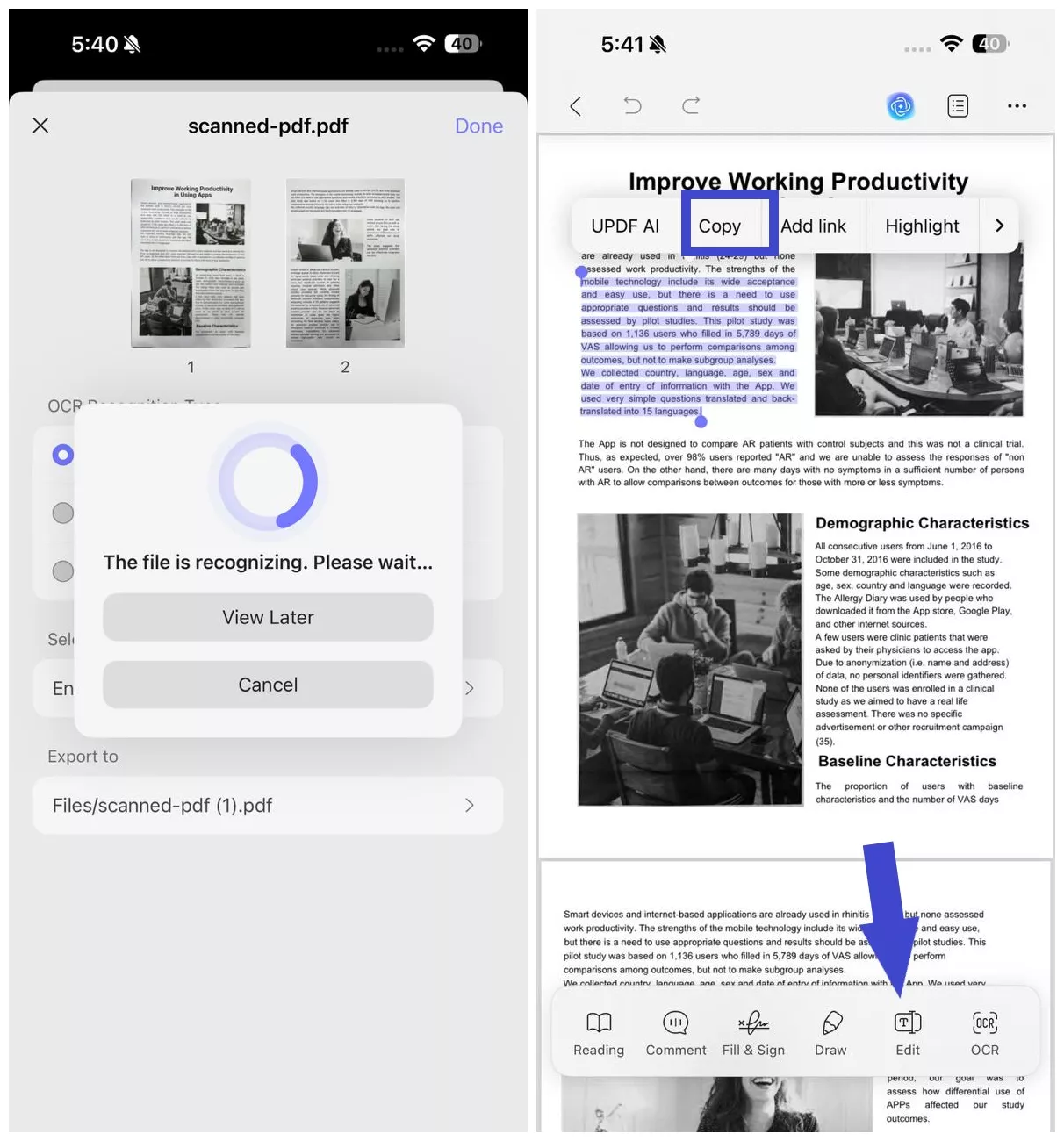
Step 1. Launch UPDF and Open the File
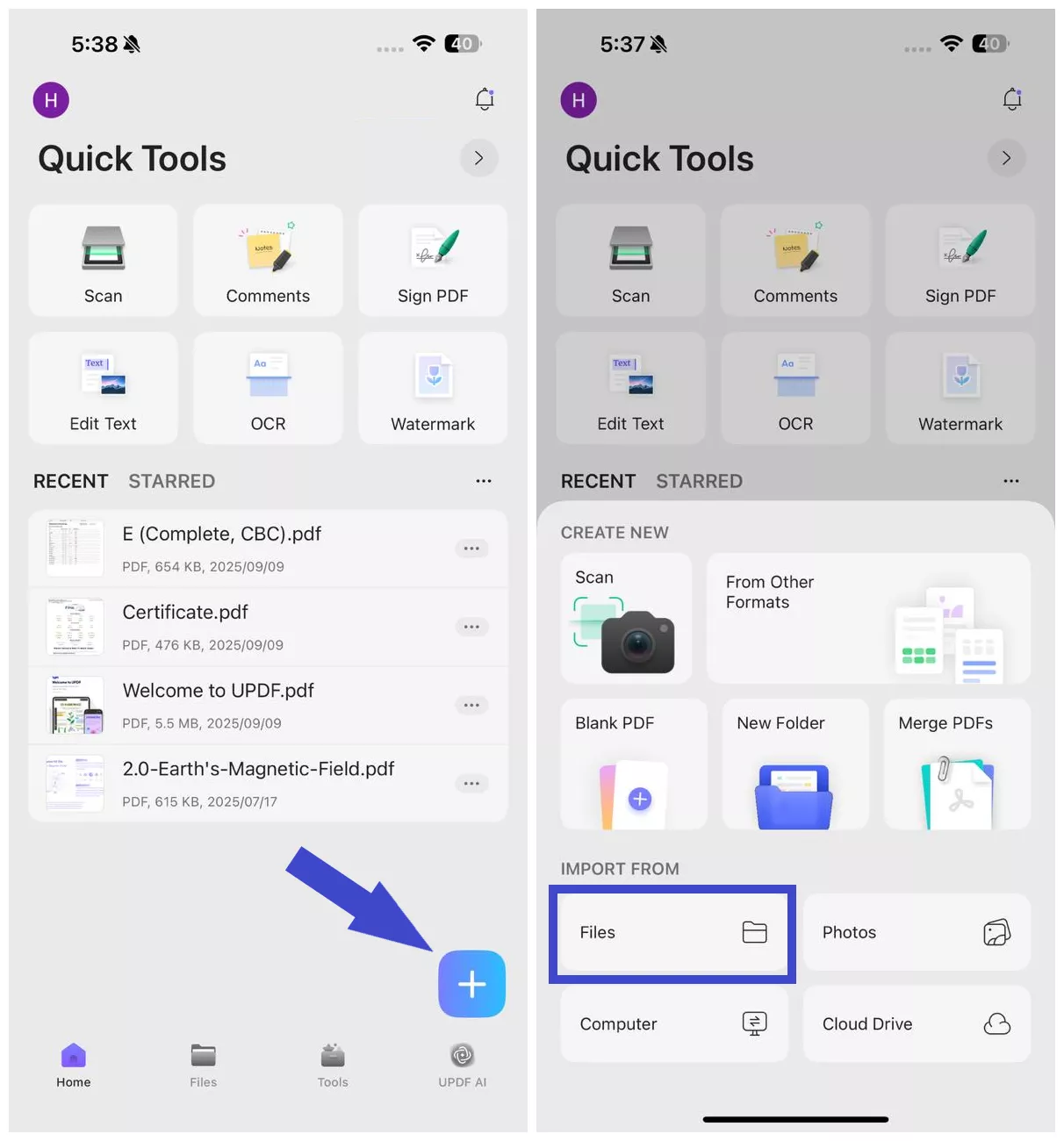
- Open the UPDF app on your phone (Android/iOS). You can download UPDF Mobile from App Store and Google Play. Click the "+" icon from the bottom right corner and tap "Files" to open the scanned PDF.
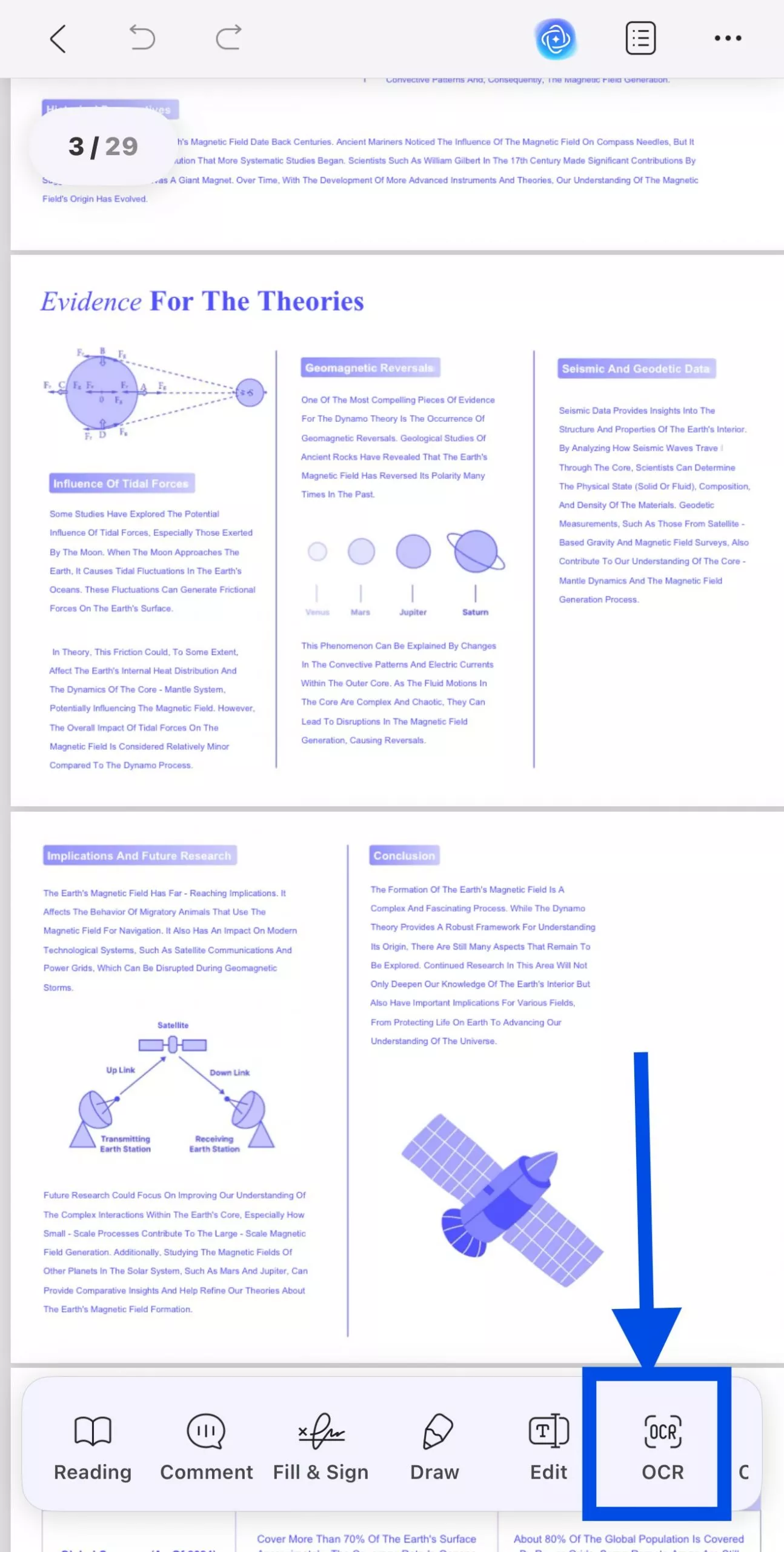
From the pop-up window, click the OCR button at the bottom of the page.
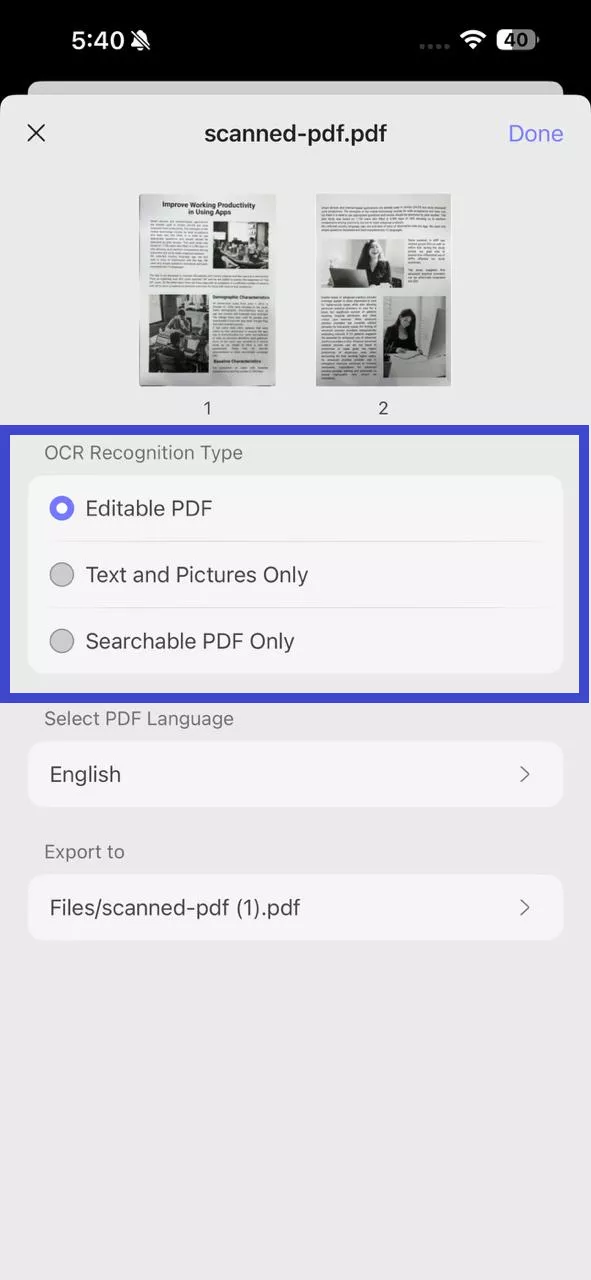
Step 2. Under "OCR Recognition Type", choose one of the following options:
Step 3. Click "Select PDF Language" and choose the document language. Select multiple languages if the document contains text in more than one language.
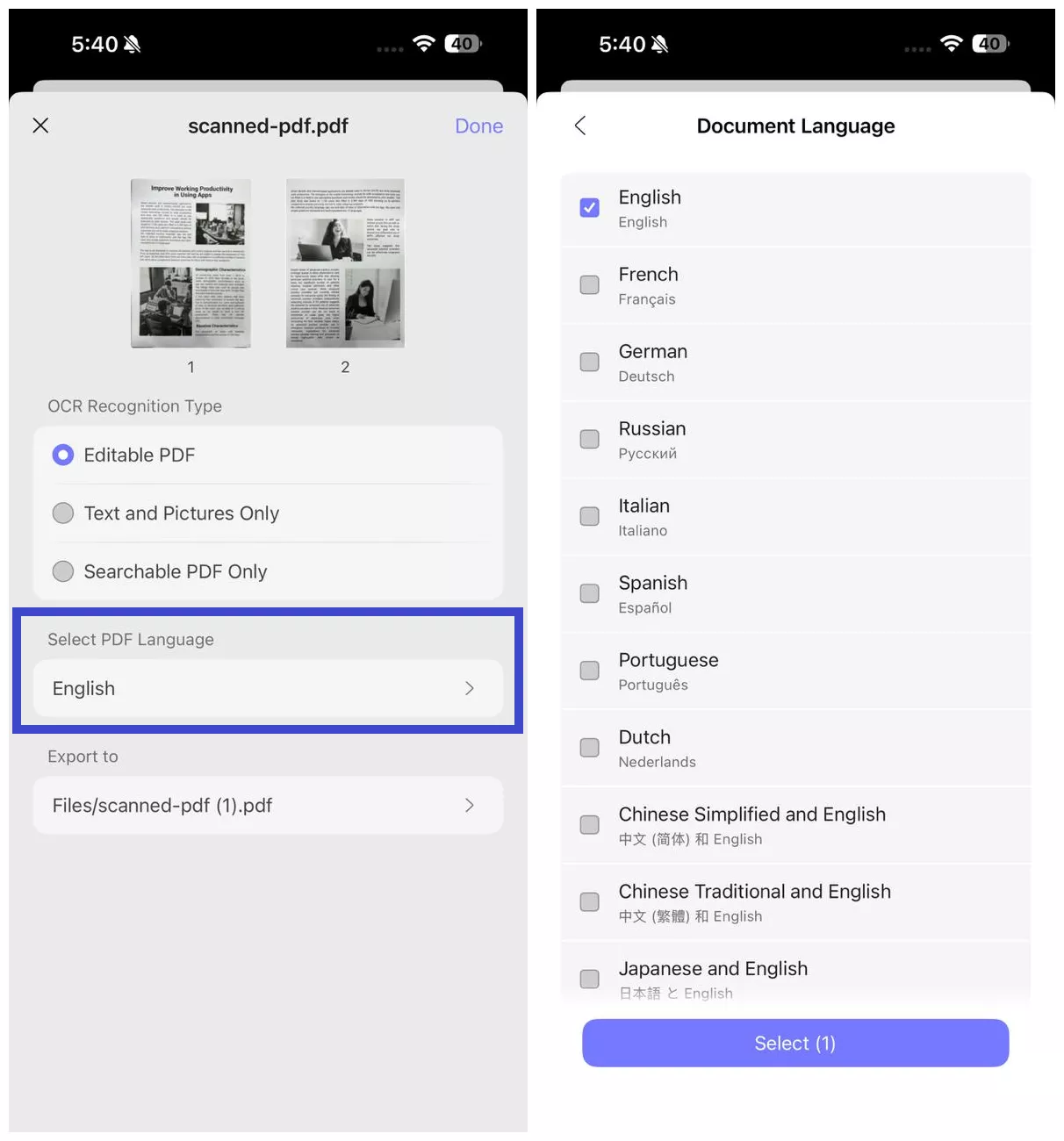
Step 4. Configure the "Export to" location to specify where you want to save the OCRed PDF and hit the "Done" button to begin OCR.
Step 5. Wait for the OCR to finish. Once the OCR is completed, go to the "Files" tab and open the newly-generated OCRed PDF. Copy the text or use UPDF's edit feature to edit text and images.
Perform OCR During File Format Conversion
Even more conveniently, you can enjoy seamlessly OCR while converting formats, e.g., Word, PPT, Excel, JPG, and so on — all in one step. With its built-in OCR (Optical Character Recognition) technology, UPDF intelligently recognizes text from scans while converting them to your desired format, eliminating the need for separate OCR preprocessing.
Key Benefits:
- One-Click Conversion – No more manual OCR steps; convert and extract text simultaneously for faster results.
- Preserve Original Layout – Maintain formatting, tables, and images during conversion for professional-looking documents.
- Multi-Device Support – UPDF lets you run OCR during file conversion, whether you’re using a phone or a computer.
- Batch Processing – Save time by converting multiple scanned files at once without losing quality.
Here's the steps:
- For single scanned documents:
Step 1: Drag and drop your your scanned documents to upload after launching UPDF.
Windows • macOS • iOS • Android 100% secure
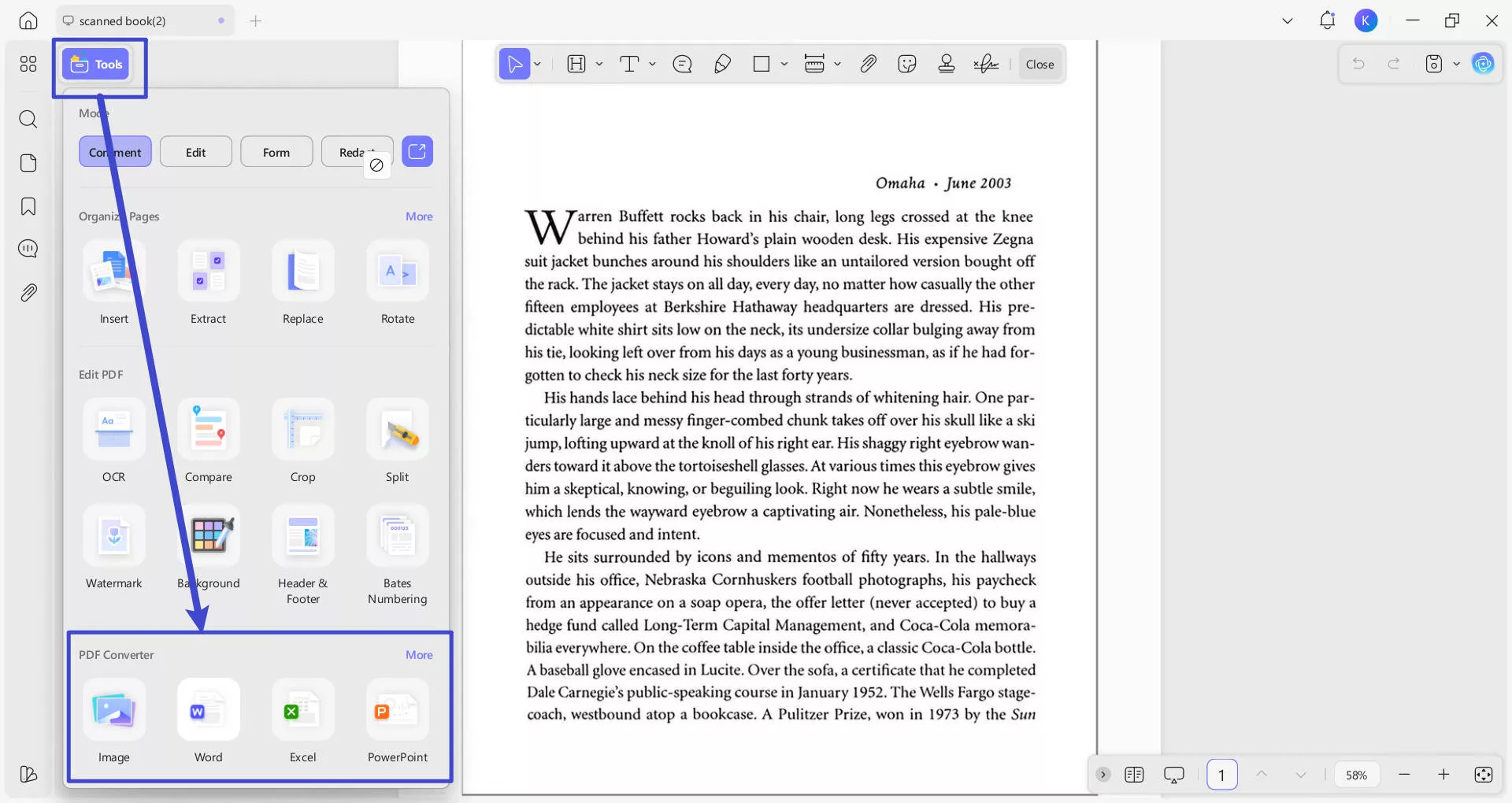
Step 2: After opening your documents in UPDF, go to Tools > PDF Converter section to choose the format you want to convert (e.g. Word)
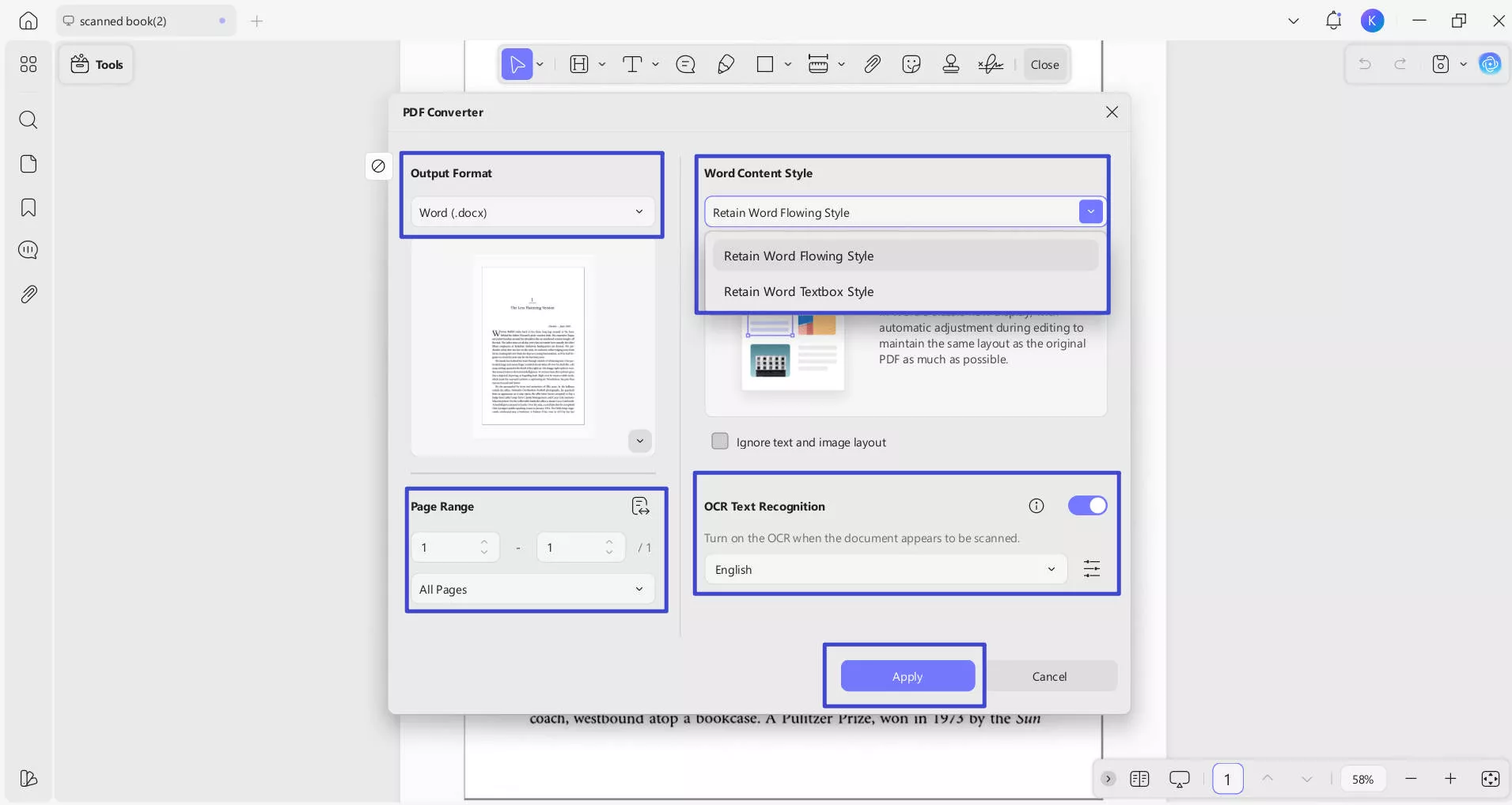
Step 3. From the pop-up window, check if have selected the right output format. You can set page range and content style if you choose Word as your output format. Toggle "OCR Text Recognition" to on and correctly select the documents' language type. Click the purple "Apply" button (bottom-right) to start conversion.
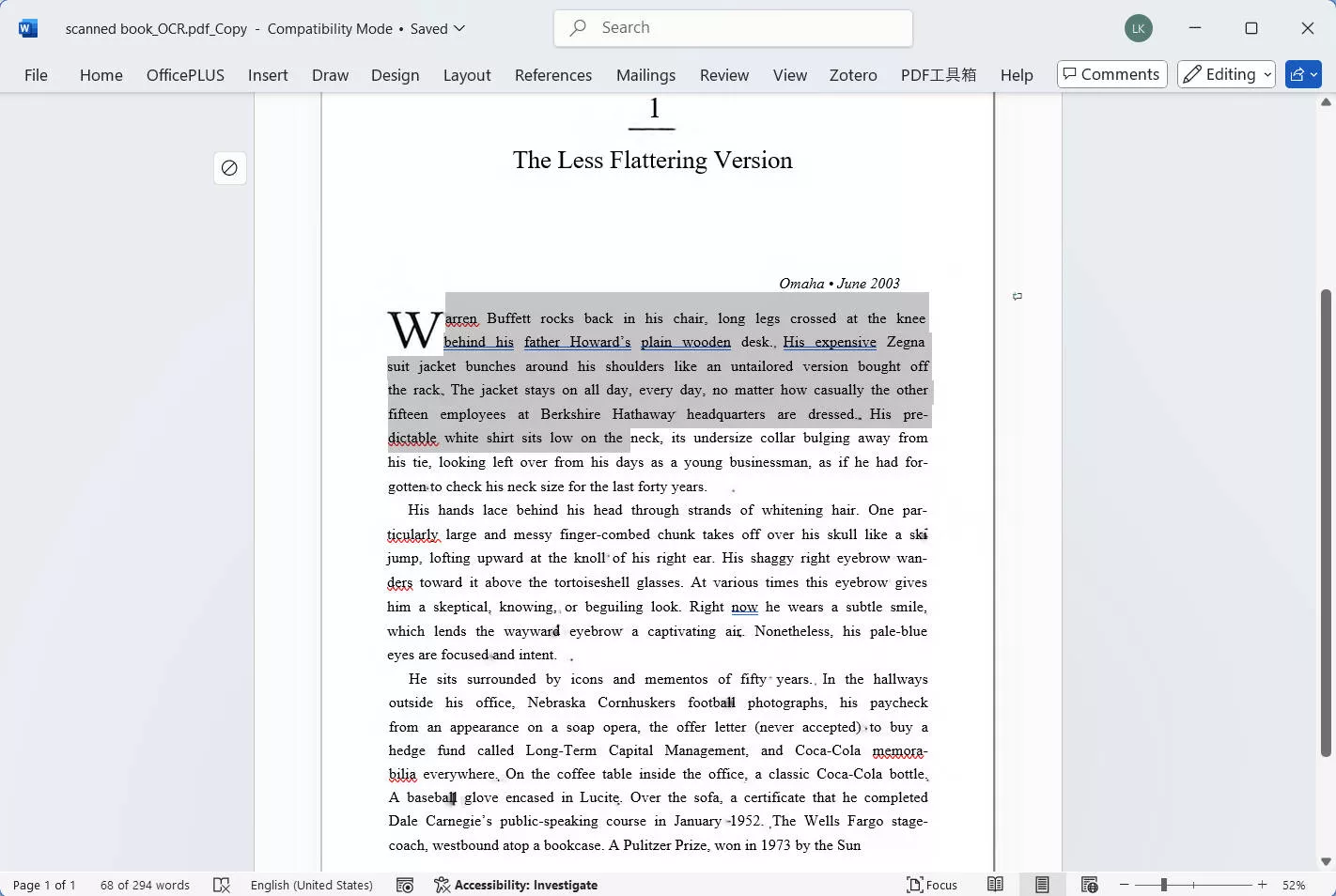
Step 4: Select a location to save these converted and OCR-processed files. Now let's preview the results: after OCR processing in UPDF, the converted PDF to Word maintains nearly identical formatting and layout to the original document, while allowing full text editing capabilities.
- For multiple scanned documents:
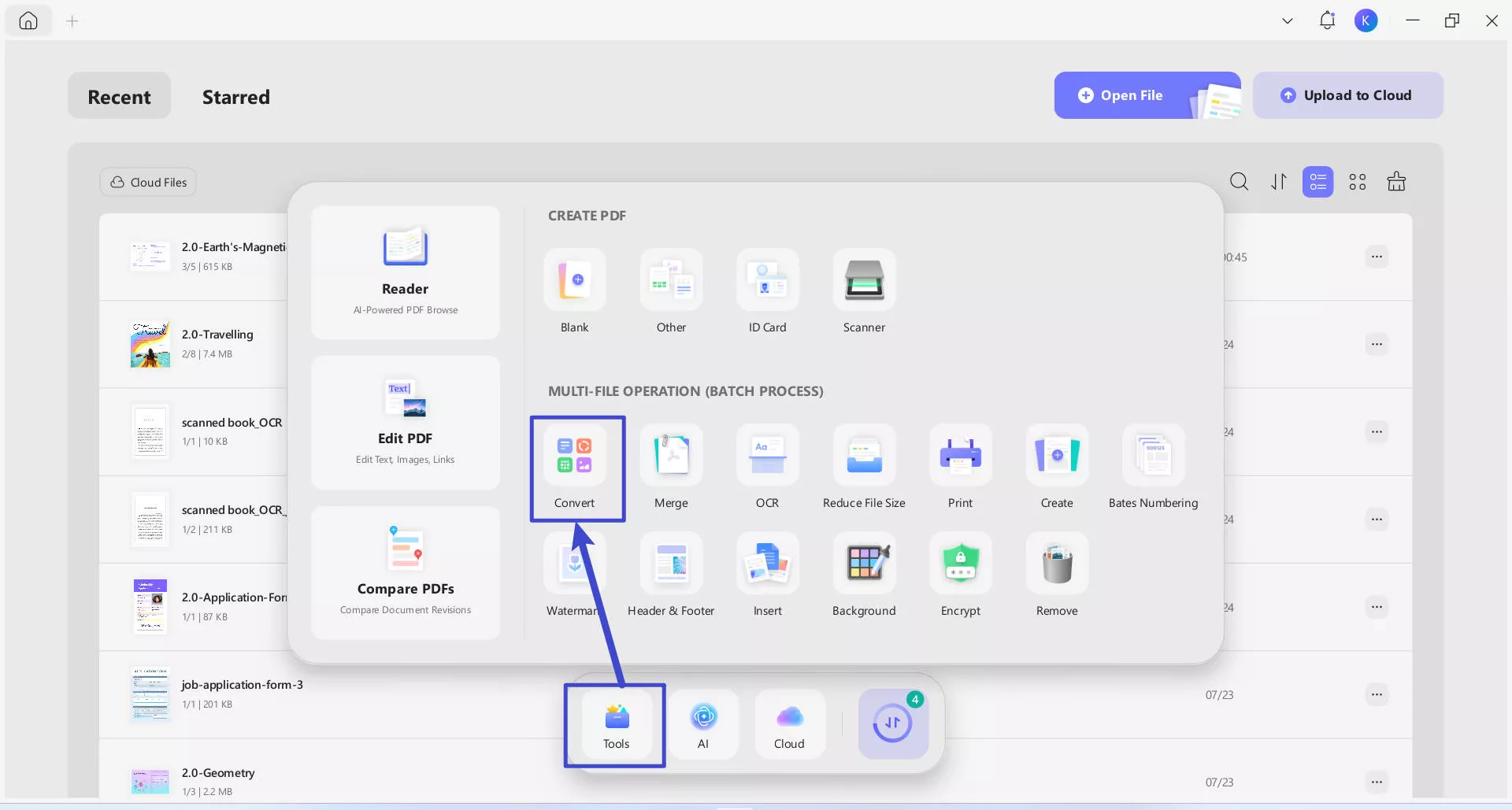
Step 1: Click the "Tools" button after launching UPDF, from the pop-up menu, select "Convert" under the MULTI-FILE OPERATION panel.
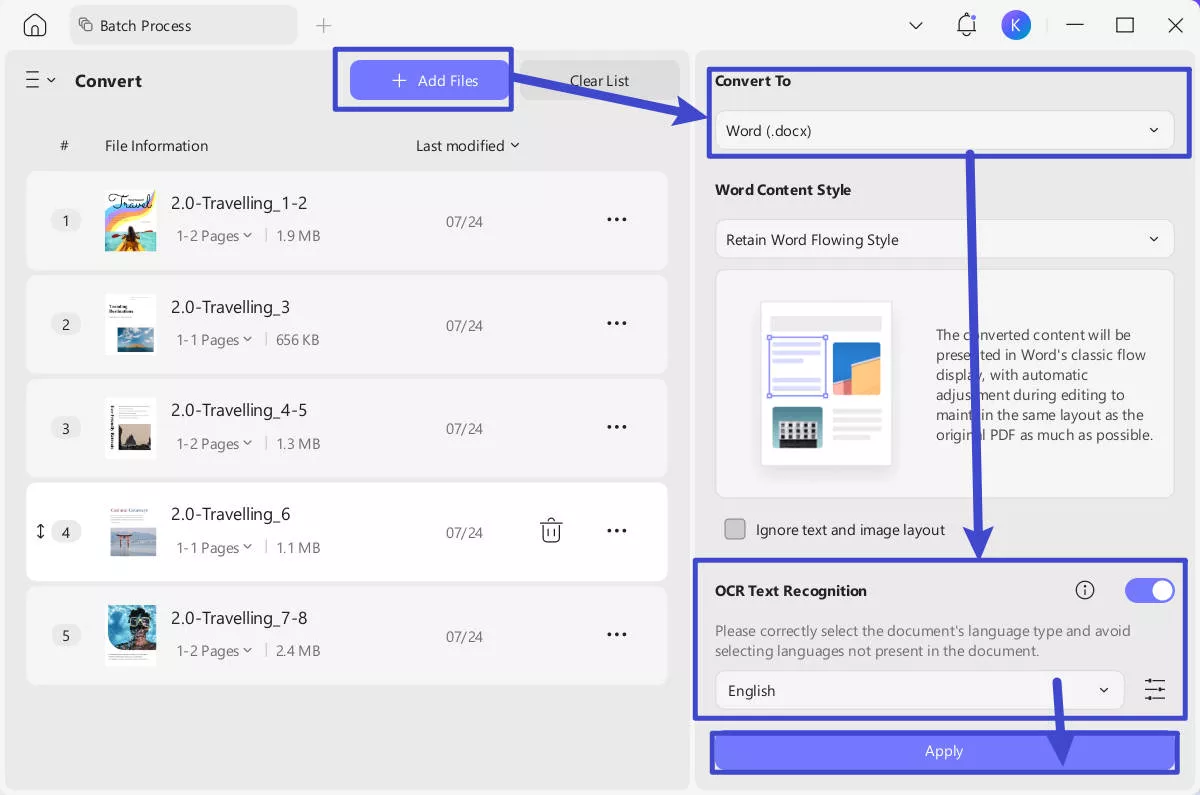
Step 2: Drag and drop your your scanned documents to upload. In the "Convert To" dropdown, select the output format that you want to convert (e.g. Word). Toggle "OCR Text Recognition" to on, and correctly select the documents' language type. Click the purple "Apply" button (bottom-right) to start batch conversion.
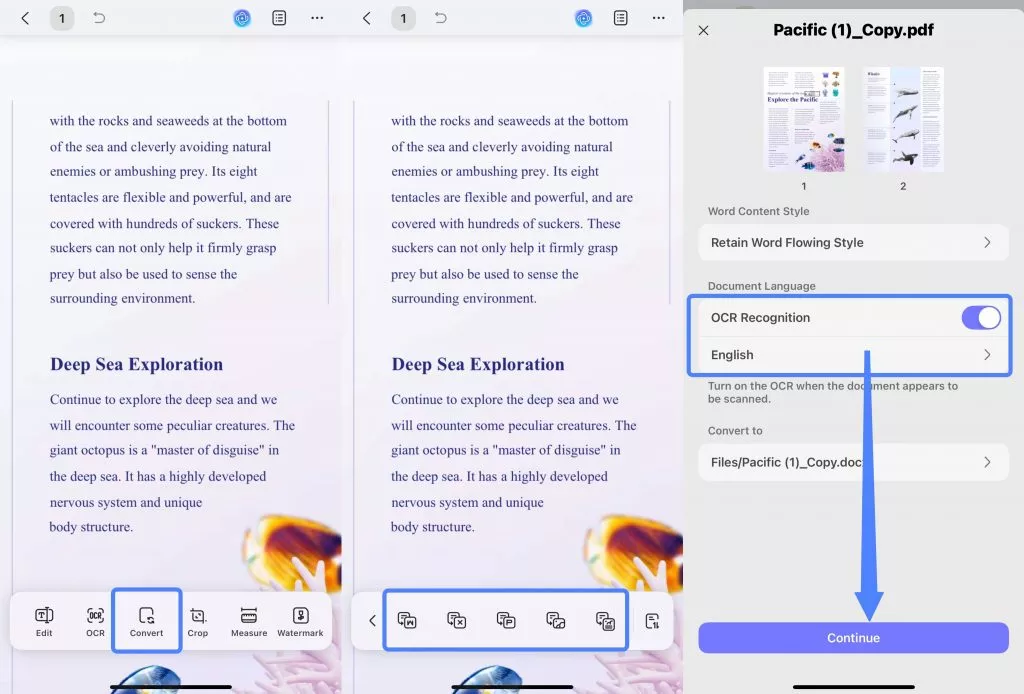
For mobile users, after opening a file in UPDF Mobile, tap Convert in the bottom menu bar → select the format you need, such as Word. In the pop‑up menu, you can toggle OCR Recognition on. It’s that simple!
To learn more about how to OCR a PDF, watch the below video guide.
Part 5. FAQS About OneNote OCR
Q1. How to Use OCR in OneNote on Android?
Open the OneNote Android application and create a new note by clicking the "+ Notebook" button. Next, you need to tap "Insert" from the top and insert the image or PDF (as a printout) in OneNote. Now tap on the image, and from the options, select "Copy Text." You can now paste that copied text anywhere.
Q2. How to Use OCR in OneNote on iPad/iPhone?
Open the iOS OneNote application and open a new OneNote note by tapping the "+ Notebook" button. Here, you need to go to a page, tap "Insert" from the top, and select "Picture" to add an image or "PDF Printout" to add a scanned PDF. Once the media loads, tap on the image, tap "Copy Text," and wait as OneNote processes your text. Once processing finishes, you may paste the text in the same Note or another application.
Q3. How to Fix OCR OneNote Not Working?
Sometimes OneNote OCR feature may not work for you, and to fix it, you need to restart the OneNote application, reupload the image or scanned document to the OneNote application and try using the OCR feature again. However, if it still does not work, you need a reliable solution, and that is using UPDF OCR.
Final Thoughts
Windows • macOS • iOS • Android 100% secure



 Enola Miller
 Enola Davis